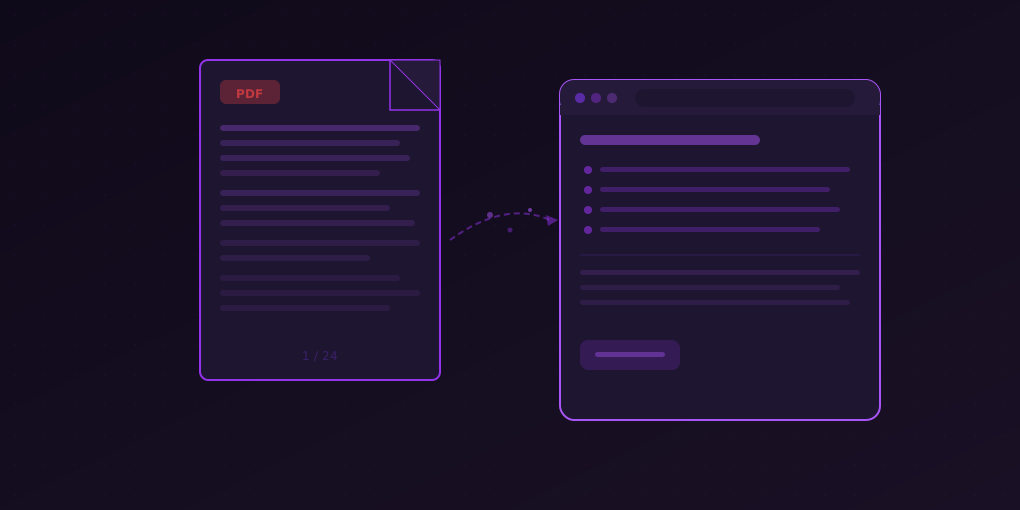
Summarize PDFs in Your Browser Without Uploading Anything
How to summarize PDF documents directly in your browser with full privacy — no file uploads, no cloud processing, no data leaving your machine.
You receive a 47-page vendor proposal. Or a dense 30-page research paper. Or a compliance report that arrived at 4:55 PM on a Friday. You need to understand the key points quickly, but the thought of uploading sensitive documents to yet another cloud service makes you pause.
That pause is reasonable. Most AI summarization tools require you to upload your PDF to their servers. Your document travels across the internet, gets processed on someone else’s infrastructure, and you have to trust their privacy policy about what happens next. For personal reading, maybe that is fine. For confidential business documents, legal contracts, or proprietary research — it is a real concern.
5MinRead takes a different approach.
How Browser-Based PDF Summarization Works
When you open a PDF in your browser and use 5MinRead, the extension reads the document content directly from your browser tab. The text extraction happens locally — the PDF is parsed on your machine, in your browser, using the content that is already loaded.
Here is the technical flow:
- You open a PDF in Chrome. The browser renders it using its built-in PDF viewer.
- You click 5MinRead and hit Summarize.
- The extension extracts text from the rendered PDF content in your browser tab.
- The extracted text is sent to the AI model for summarization.
- The summary streams back to you in the extension popup.
The critical difference: your PDF file is never uploaded anywhere. Only the extracted text content goes to the AI for processing — the same text you would get if you selected all and copied. The original file stays on your machine or wherever you opened it from.
What About the Text That Goes to the AI?
Transparency matters here. The extracted text does leave your browser to reach the AI model — summarization requires processing power that runs on servers. But there is an important distinction between sending extracted text for summarization and uploading an entire file to a third-party platform.
When you upload a PDF to a cloud service, they receive:
- The full document with all metadata
- Embedded images, annotations, and form data
- Document properties (author, creation date, revision history)
- The file itself, which may be stored on their servers
When 5MinRead processes a PDF, the AI receives:
- The visible text content only
- No file metadata, images, or embedded objects
- No persistent storage of your document
This is a meaningful privacy difference, especially for documents that contain sensitive metadata or embedded information beyond the visible text.
Why This Matters: Real Privacy Scenarios
Corporate Documents
A product manager needs to quickly understand a competitor analysis report before a strategy meeting. The report is marked confidential. Uploading it to a public summarization website violates company data handling policy. With 5MinRead, the document never leaves the browser as a file — no policy violation, no risk of the document ending up in a training dataset.
Legal Contracts
A small business owner receives a 35-page lease agreement. They want to understand the key terms before meeting with their lawyer (to save billable hours on basic comprehension). The contract contains financial terms, personal information, and property details. Browser-based summarization lets them get oriented without exposing the full document to a third party.
Academic Research
A PhD candidate is reviewing papers that include unpublished data from collaborators. The data is pre-publication and embargo-sensitive. Summarizing in-browser means the research stays within the candidate’s control during the review process.
Medical and Financial Records
Personal documents like insurance explanations of benefits, tax summaries, or medical reports contain some of the most sensitive information people handle. Being able to summarize these without uploading them to unknown servers is not a luxury — it is basic data hygiene.
Comparison: Upload-Based vs. Browser-Based
| Feature | Upload-Based Services | 5MinRead (Browser-Based) |
|---|---|---|
| File upload required | Yes | No |
| Document leaves your machine | Yes (full file) | No (text only to AI) |
| Metadata exposure | Full | None |
| Works offline | No | No (AI needs network) |
| File size limits | Often 10-50MB | Limited by browser memory |
| Processing speed | Varies (upload + process) | Fast (no upload step) |
| Works with any PDF viewer | No (must use their UI) | Yes (Chrome’s built-in viewer) |
| Account required | Usually | Free tier available |
Getting the Best Results from PDF Summarization
PDFs are not all created equal, and the quality of your summary depends partly on the quality of the source document. Here is how to optimize.
Documents That Summarize Well
- Text-based PDFs with selectable text (the vast majority of modern documents)
- Well-structured reports with clear headings and sections
- Academic papers with standard structure (abstract, methods, results, discussion)
- Business documents like proposals, analyses, and white papers
Documents That May Need Extra Attention
- Scanned PDFs (image-only) — if you cannot select text in the PDF, the extension cannot extract it either. You would need OCR first.
- Heavily formatted PDFs with complex tables, charts, and multi-column layouts — the text extraction may not preserve the visual structure perfectly
- Form-heavy PDFs where most content is in form fields rather than running text
Tips for Better PDF Summaries
-
Choose the right summary length. For a 5-page executive summary, Small works fine. For a 50-page technical report, use Full or Maximum to capture adequate detail.
-
Use appropriate presets. The Academic preset handles research papers better than a generic summary. The Cheat Sheet preset works well for dense reference documents. Meeting Minutes handles recorded meeting transcripts that were exported to PDF.
-
Summarize sections separately for very long documents. If a 100-page report covers five distinct topics, you may get better results summarizing each section’s pages individually rather than the whole document at once.
-
Check tables and figures. AI summarization works with text. If key data lives in charts or tables that did not extract cleanly, the summary will miss it. Glance at the visual elements separately.
Use Cases in Practice
The Research Paper Workflow
Researchers often face a stack of papers to evaluate for relevance. Here is an efficient workflow:
- Open the PDF in Chrome
- Summarize with the Academic preset at Medium length
- Read the summary to determine relevance (2 minutes vs. 20+ minutes of reading)
- If relevant, read the full paper with attention focused on the sections the summary identified as key
- Use auto-highlights to mark the most important passages for citation
This approach lets you screen 10-15 papers per hour instead of 2-3.
The Contract Review Workflow
Before your lawyer meeting:
- Open the contract PDF in Chrome
- Summarize at Full length to capture as much detail as possible
- Note the key terms the summary identifies — pricing, termination clauses, liability sections
- Read those specific sections carefully in the original document
- Bring your questions to the lawyer, focused on the clauses that matter most
You arrive at the meeting informed and focused, saving time (and fees) on basic orientation.
The Report Triage Workflow
For professionals who receive multiple reports weekly:
- Summarize each report as it arrives
- Categorize by urgency: needs immediate attention, review this week, archive
- Deep-read only the urgent ones in full
- Keep summaries as reference notes for the rest
This takes a 2-hour weekly report review and compresses it to 30-40 minutes.
Frequently Asked Questions
Does it work with password-protected PDFs? If you can open and read the PDF in your browser (after entering the password), yes. The extension reads what the browser renders.
What about PDFs in other languages? 5MinRead supports summarization in 15 languages. The AI model handles multilingual content well, and you can even get a summary in a different language than the source document.
Is there a page limit? There is no hard page limit, but very long documents (200+ pages) may hit token limits depending on your plan. For very long PDFs, summarizing in sections is recommended.
Can I summarize PDFs from email attachments? If you open the PDF attachment in a browser tab (most email clients allow this), yes. The extension works with any PDF rendered in Chrome.
The Privacy Bottom Line
In a landscape where most AI tools require you to upload your files and trust opaque data handling policies, browser-based processing is a straightforward privacy advantage. Your documents do not become someone else’s data. The text that reaches the AI model is processed for your summary and nothing more.
For anyone handling sensitive, confidential, or simply personal documents, that difference matters. You should not have to choose between understanding your documents quickly and keeping them private. With 5MinRead, you do not have to.